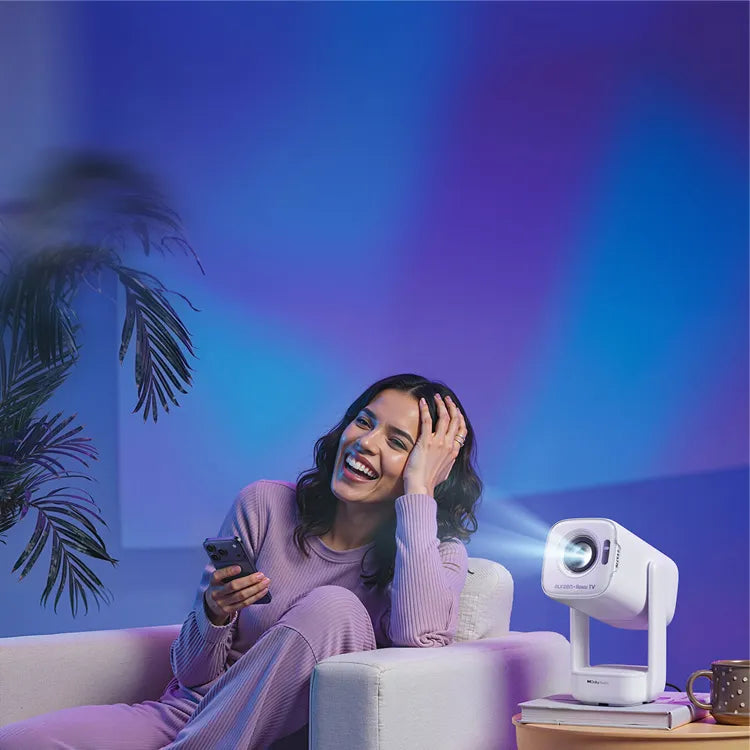


Aurzen EAZZE D1R air | Introduction
Tutorial Videos
How to use the voice control?
How to setup the projector?
How to switch the projector to speaker mode?
How to screen mirroring your Android Device to this Roku TV projector?
How to use the AirPlay function?
How to use manual focus?
How to use manual keystone correction?
How to Zoom in and out
Does it support streaming licensed content from Netflix, Prime Video, and YouTube?
How to enter the free Roku Channels?
How to enter the Guest Mode
How to connect an external Bluetooth speaker?
How about the picture quality of the projector?
How to use the Auto Focus and Auto Keystone Correction?
What are the recommended projector distance and screen size?
How about the sound quality of this projector(Does it support Dolby Audio)
How to use a power bank to power the D1R air projector?
How to remove dust black spots on screen from the projector lens?
Where to find kid friendly content?
How to download the apps you want?
How do l download the Roku App Official and use it as a remote control?
How to change brightness levels?
How to connect Wi Fi?
FAQ
How do I set up the Aurzen EAZZE D1R air projector for the first time?
To set up the Aurzen EAZZE D1R air, place the projector on a stable surface, connect it to power, turn it on, choose your language, connect to Wi-Fi, and follow the on-screen Roku TV activation steps. A Roku account and internet connection are required for activation.
Do I need a Roku account to use the EAZZE D1R air?
Yes. A Roku account and internet connection are required to activate the projector. Roku never charges for activation. Once activated, you can download supported streaming apps from the Roku Channel Store and customize your home screen.
Does the EAZZE D1R air support Netflix, Prime Video, YouTube, Disney+, and Hulu?
Yes. The EAZZE D1R air features built-in Roku TV, so you can download supported streaming apps from the Roku Channel Store, including popular services such as Netflix, Prime Video, YouTube, Disney+, and Hulu, where available. App availability may vary by country or region, and some channels may require a subscription.
Why can’t I wirelessly mirror Netflix, Disney+, Hulu, or other streaming apps?
Due to copyright restrictions, protected content from apps such as Netflix, Disney+, Hulu, and similar streaming services may not support wireless screen mirroring or casting. For the best experience, download and watch these apps directly through the Roku Channel Store on the projector.
Does streaming app availability vary by country or region?
Yes. Roku TV app and channel availability may vary by country or region. Please check the Roku Channel Store in your location for the most accurate list of supported apps, channels, and services.
How do I use AirPlay on the EAZZE D1R air?
Make sure AirPlay is turned on by going to Home > Settings > Apple AirPlay and HomeKit. Then connect your iPhone, iPad, or Mac and the projector to the same Wi-Fi network. Open Screen Mirroring on your Apple device and select Aurzen Roku TV or the projector name.
How do I screen mirror an Android phone to the EAZZE D1R air?
Turn on Wi-Fi on your Android device, then enable Multi-screen, Smart View, or Wireless Display depending on your phone model. Select Aurzen Roku TV from the available devices and confirm the connection on the projector if prompted.
Can I power the EAZZE D1R air with a power bank?
Yes. The EAZZE D1R air can be powered by a USB-C power bank or power adapter that supports USB-C Power Delivery with a minimum output of 65W. A PD-compatible USB-C cable is also required for stable power supply.
What kind of power bank do I need for the EAZZE D1R air?
Use a USB-C PD power bank with at least 65W output, ideally 20V / 3.25A, together with a PD-compatible USB-C cable. Lower-output power banks may not power the projector properly or may cause unstable operation.
Is the EAZZE D1R air good for outdoor movie nights?
Yes. The EAZZE D1R air is suitable for backyard movie nights, patio viewing, camping, and evening outdoor entertainment. For the best image quality, use it after sunset or in a low-light environment, and project onto a screen or smooth white wall.
What projection distance and screen size are recommended?
The EAZZE D1R air supports a 40–150 inch projection size. For optimal image quality, an 80-inch screen is recommended at about 7.26 ft / 2.21 m from the wall or screen. You can move the projector closer or farther away to adjust the image size.
How do I improve image clarity?
You can trigger auto focus by moving the projector slightly or by going to Home > Settings > Projector settings > Start auto-focus. For manual adjustment, go to Home > Settings > Projector settings > Image correction > Manual focus and follow the on-screen instructions.
How do I use auto focus and auto keystone correction?
The projector supports auto focus and auto keystone correction for quick setup. You can trigger these features by moving the projector slightly or by going to Home > Settings > Projector settings and selecting Start auto-focus or Start auto-keystone.
Can I connect an external Bluetooth speaker or headphones?
Yes. You can connect the EAZZE D1R air to Bluetooth speakers or headphones. Go to Home > Settings > Remotes & devices > Bluetooth headphones & speakers, then select Add new Bluetooth audio device and pair your speaker or headphones.
What should I do if the projector cannot connect to Wi-Fi?
Make sure you selected the correct Wi-Fi network and entered the password correctly. The EAZZE D1R air supports 2.4GHz and 5GHz Wi-Fi networks. If the issue continues, move the projector closer to the router, reduce wireless interference, or restart the router.
User Guide
| Title | Last Updated | Size | Language | Download |
|---|---|---|---|---|
| EAZZE D1R air User manual V2.01 | 2026/06/04 | 12.45 MB | English/Español/Español |