
So richten Sie die <tc>Aurzen</tc> <tc>ZIP</tc> Mini-Projektor in 5 Minuten

Die Einrichtung eines Mini-Projektors sollte schnell und unkompliziert sein, insbesondere für Erstbenutzer. Laut offiziellen Angaben
Dieser Leitfaden führt Sie anhand realer Anwendungsfälle und der offiziellen Anweisungen durch den korrekten Einrichtungsprozess und hilft Ihnen so, häufige Fehler zu vermeiden und innerhalb weniger Minuten ein klares Bild zu erhalten.
Schritt 1: Projektor vor der Verwendung vorbereiten

Vor dem Einschalten
- Verwenden Sie die mitgelieferten
US BC-Ladekabel - Zum Laden während des Gebrauchs, ein Netzteil mit 12 V/2 A oder höherer Leistung wird empfohlen
- Die Akkuanzeigen zeigen den Ladestatus und die verbleibende Kapazität an.
Der Projektor kann auch während des Ladevorgangs verwendet werden, was für längere Betrachtungssitzungen von Vorteil ist.
Schritt 2: Die dreiteilige Struktur korrekt auseinanderfalten

Der
Um sich sicher zu entfalten:
- Öffnen Sie den Projektor langsam auf den gewünschten Winkel.
- Jedes Scharnier stützt 0°–90° Drehung
- Die Scharniere dürfen nicht über ihren vorgesehenen Bereich hinaus belastet werden.
Der Projektor spiegelt das Bild automatisch, je nachdem, wie er positioniert ist (Tischprojektion, vertikale Projektion, Projektion nach oben oder nach unten).
Tipp: Versuchen Sie nicht, den Boden flach zu drücken.
Schritt 3: Einschalten und die richtige Region auswählen
- Drücken und halten Sie die Ein-/Ausschalter 3 Sekunden lang gedrückt halten. den Projektor einschalten
- Wählen Sie bei der erstmaligen Einrichtung die Option aus. korrekte Region das zu Ihrem Standort passt
Die Wahl der falschen Region kann später zu Problemen mit der Bildschirmspiegelung oder der Verbindung führen. Dieser Schritt wird oft übersprungen, hat aber direkten Einfluss auf die WLAN-Leistung.
Schritt 4: Lassen Sie Autofokus und Trapezkorrektur ihre Arbeit erledigen.

Sobald das Bild erscheint:
- Der
ZIP wird den Fokus automatisch anpassen ToF-Autofokus ohne Verzögerung - Die automatische vertikale Trapezkorrektur wird aktiviert, wenn der Projektor geneigt ist.
Wichtige Hinweise:
- Der
ZIP unterstützt Nur vertikale Trapezkorrektur von ±25° - Die horizontale Trapezkorrektur wird nicht unterstützt.
- Falls der Autofokus nicht sofort auslöst, bewegen Sie den Projektor leicht, um ihn erneut zu aktivieren.
Manuelle Fokussierung und Trapezkorrektur können bei Bedarf auch über das Bildschirmmenü aufgerufen werden.
Schritt 5: Verbinden Sie Ihr Gerät (WLAN-freie Spiegelung)
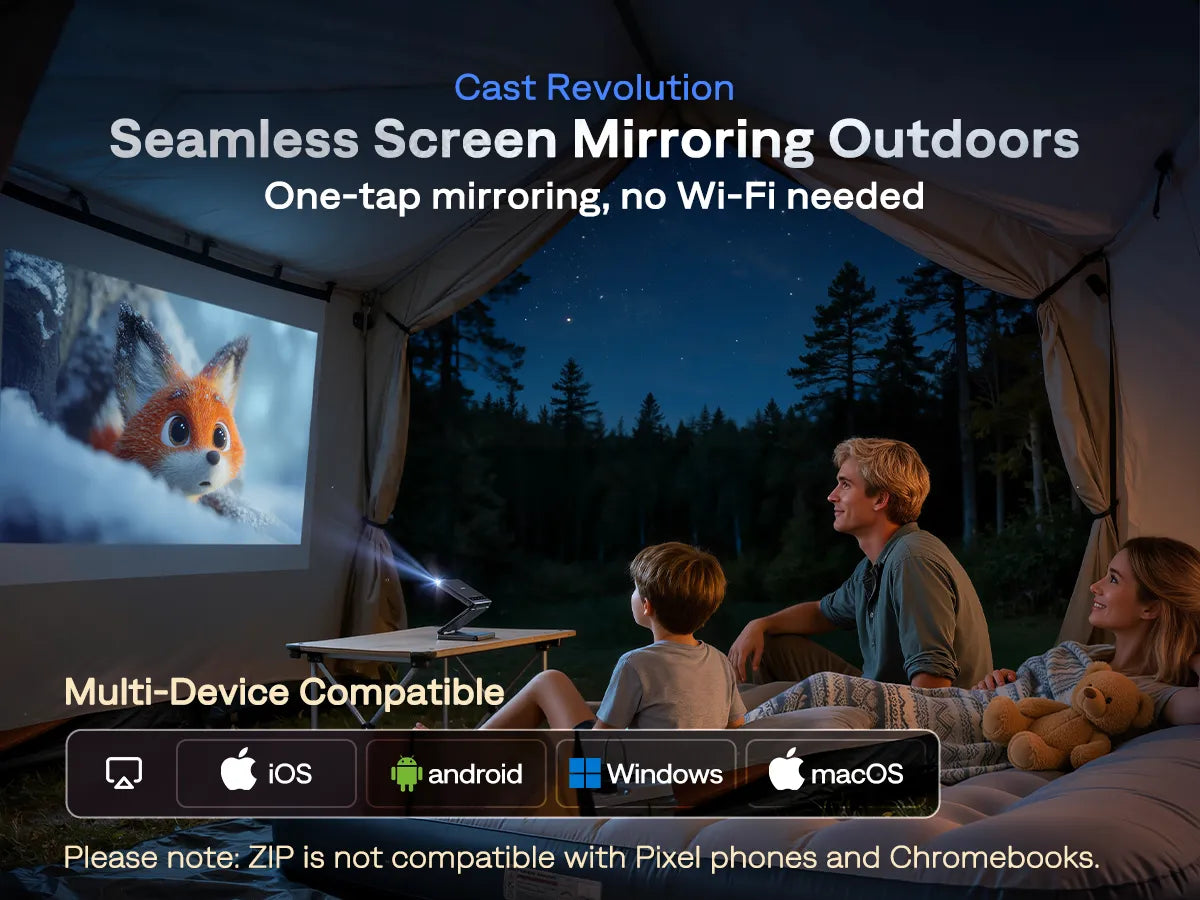
Der
Unterstützte Systeme umfassen:
- iOS
- Android (Geräte mit Unterstützung für Multi-Screen-, Smart View- und Wireless Display-Funktionen)
- macOS
- Windows
Die Verbindungsschritte variieren je nach System geringfügig, basieren aber alle auf der Auswahl des/der/der/des
Wichtig: Aufgrund von DRM-Urheberrechtsbeschränkungen können drahtlose Bildschirmspiegelungsfunktionen in der Regel keine geschützten Inhalte von Apps wie Netflix, Disney+, Hulu, und ähnlichen Streaming-Diensten. Dies ist ein normales Verhalten bei vielen Projektoren und kein Defekt des Geräts.
Wenn Sie diese Dienste streamen möchten
Optional: Bluetooth-Lautsprecher anschließen
Wenn Sie einen lauteren oder satteren Klang wünschen:
- Aktivieren Sie Bluetooth im Menü des Projektors.
- Schließen Sie externe Lautsprecher oder Kopfhörer an.
Der
Hilfreiche Einrichtungstipps aus dem Handbuch
- Um eine Überhitzung zu vermeiden, müssen Lufteinlass und -auslass frei bleiben.
- Eine leichte Wärmeentwicklung während des Gebrauchs ist normal.
- Im Turbo-Modus kann die Lüfterlautstärke zunehmen, was ein zu erwartendes Verhalten ist.
- Für optimale Bildgröße und -schärfe wird ein Projektionsabstand von 1–1,4 Metern für ein 100–150 cm großes Bild empfohlen.
Warum Aurzen ZIP Lässt sich leichter einrichten als die meisten Mini-Projektoren
Herkömmliche Mini-Projektoren basieren häufig auf:
- Externe Stative
- Manueller Fokus
- Positionierung durch Versuch und Irrtum
Der
- Höhen- und winkelverstellbar
- Autofokus
- Automatische vertikale Trapezkorrektur
Diese Konstruktion reduziert die Einrichtungszeit erheblich und macht den Vorgang vorhersehbarer, insbesondere für Projektor-Neulinge.
Schlussbetrachtung
Durch Befolgen des offiziellen Einrichtungsprozesses und einiger praktischer Tipps können die meisten Benutzer mit der Nutzung beginnen.
Häufig gestellte Fragen: Aurzen ZIP Einrichtung und Nutzung
1. Wie lange dauert die Einrichtung?
Die meisten Benutzer können die Ersteinrichtung in etwa 3–5 Minuten, einschließlich des Aufklappens, Einschaltens und Anschließens eines Geräts.
2. Kann ich die/den/das verwenden?
Ja. Der Projektor unterstützt gleichzeitiges Laden und Benutzen, sofern ein geeignetes Netzteil verwendet wird.
3. Warum spiegeln Netflix oder Disney+ ihren Bildschirm nicht?
Dies liegt an den DRM-Urheberrechtsbeschränkungen. Drahtlose Bildschirmspiegelung kann normalerweise keine geschützten Streaming-Inhalte von Apps wie Netflix oder Disney+ anzeigen. Um diese Dienste auf dem Bildschirm zu nutzen, müssen Sie die Bildschirmspiegelung drahtlos nutzen.
4. Tut die
Ja. Dank seines dreifach faltbaren Designs und der automatischen Bilddrehung…
5. Was soll ich tun, wenn das Bild unscharf aussieht?
Stellen Sie sicher:
- Die Linse ist sauber
- Der Projektor befindet sich innerhalb der effektiven Projektionsdistanz.
- Der Autofokus ist aktiviert (bewegen Sie den Projektor gegebenenfalls leicht).
Mehr lesen
Aurzen ZIP vs. Traditionelle Mini-Projektoren: Was ist der wirkliche Unterschied?Aurzen Stellt auf der CES 2026 EV-fokussierte und ultraportable Projektionskonzepte vor- Mini-Tragbare Projektoren: Was Sie wissen müssen
- Ist
Aurzen ZIP Seriös? Was Käufer vor der Bestellung wissen sollten Aurzen ZIP Mini-Projektor im Test: Lohnt sich der weltweit erste dreiteilige Projektor?


