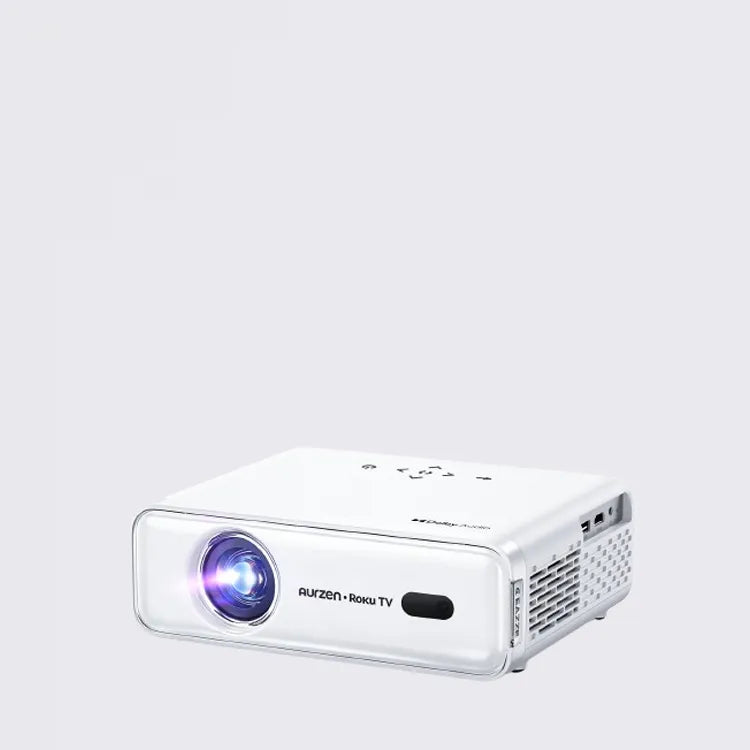


Aurzen EAZZE D1R | Introduction
Tutorial Videos
How do I download the Roku App Official and use it as a remote control?
How to Adjust Brightness on the Aurzen EAZZE D1R Roku TV Projector
How to connect an external Bluetooth speaker?
How to Connect Wi-Fi on the Aurzen EAZZE D1R Roku TV Projector?
How to Download Apps on the Aurzen EAZZE D1R Roku TV Projector?
How to Screen Mirroring Your Android Device to This Roku TV Projector?
How to Set Up the Aurzen EAZZE D1R Roku TV Projector?
How to Switch the Projector to Speaker Mode?
How to Use Manual Focus on the Aurzen EAZZE D1R Roku TV Projector
How to Use Manual Keystone Correction on the Aurzen EAZZE D1R Roku TV Projector
How to Use the AirPlay Function?
How to Use Auto Focus and Auto Keystone Correction on the Aurzen EAZZE D1R Roku TV Projector?
How to Use Voice Control on the Aurzen EAZZE D1R Roku TV Projector
How to Zoom In and Out on the Aurzen EAZZE D1R Roku TV Projector
Recommended Projection Distance and Screen Size for the Aurzen EAZZE D1R Roku TV Projector
Where to Find Kid-Friendly Content on the Aurzen EAZZE D1R Roku TV Projector
FAQ
1. Do I need a Roku account to use the projector?
Yes, a Roku account and an internet connection are required to activate the projector. Creating a Roku account is free, and it allows you to access all the Roku streaming features.
2. What streaming services are available on the Roku TV projector?
The projector gives you access to popular streaming services like Netflix, Prime Video, Disney+, Hulu, YouTube, Apple TV, and Roku Channel, as well as free movies, shows, and live TV. You can enjoy over 500 TV channels, including live news, sports coverage, and more—totally free.
3. How do I navigate the projector's interface?
The Roku TV projector features a simple and fast home screen with intuitive navigation. You can easily search for content, view personalized recommendations, and control the projector using the included no-nonsense remote or the Roku mobile app. The app also allows you to control the projector with your phone, type easily, or use voice commands.
4. What is the resolution of the projector?
The Aurzen EAZZE D1R Roku TV Smart Projector supports 1080P Full HD resolution, providing stunning picture quality with enhanced clarity and detail. It's perfect for creating a 60 to 150-inch screen for home theater or outdoor movie nights.
5. Does the projector have automatic focus and keystone correction?
Yes, the projector features advanced auto-focus and auto keystone correction, which instantly adjust the image to ensure a sharp, aligned screen. You just need to place the projector, power it on, and enjoy the big screen—no manual setup required.
6. How is the sound quality on the projector?
The Aurzen EAZZE D1R features Dolby Audio and dual 5W speakers for deep, resonant audio and clear, precise sound details. It provides 3D stereo sound that enhances your viewing experience, making you feel immersed in the action.
7. Can I connect an external Bluetooth speaker or headphones?
Yes. You can connect the EAZZE D1R air to Bluetooth speakers or headphones. Go to Home > Settings > Remotes & devices > Bluetooth headphones & speakers, then select Add new Bluetooth audio device and pair your speaker or headphones.
8. Is the projector compatible with smart home devices?
Yes, the Aurzen EAZZE D1R Roku TV projector works with Apple HomeKit, Siri, Alexa, and Google Assistant. You can control the projector with voice commands and integrate it into your smart home setup for a seamless experience.
9. How do I set up and use voice control with the projector?
The projector is compatible with voice control through smart home assistants like Alexa, Siri, and Google Assistant. Simply connect the projector to your smart home system, and you can control it with your voice to adjust settings, change channels, or search for content.
10. What is included in the box when I purchase the projector?
The package includes the Aurzen EAZZE D1R Roku TV Smart Projector, a remote control, and all necessary cables for easy setup. You’ll also find a user manual to guide you through the initial setup process.
11. Can I cast from my iPhone or iPad?
Definitely. With Apple AirPlay built in, you can wirelessly share videos, photos, and music from iOS devices directly to the projector—no additional apps, lag, or adapters required.
12. What is the ideal projection size for the Aurzen EAZZE D1R projector?
The projector can create a screen size ranging from 60 inches to 150 inches, making it perfect for both small and large rooms or outdoor movie setups.
13. How can I update the firmware of the projector?
The projector will notify you if a software update is available. To update, go to "Settings" > "System" > "System Update" and select "Check Now." Follow the on-screen instructions to complete the update.
User Guide
| Title | Last Updated | Size | Language | Download |
|---|---|---|---|---|
| EAZZE D1R Manual-EN_V1.01 | 2025/11/06 | 7.01 MB | English |