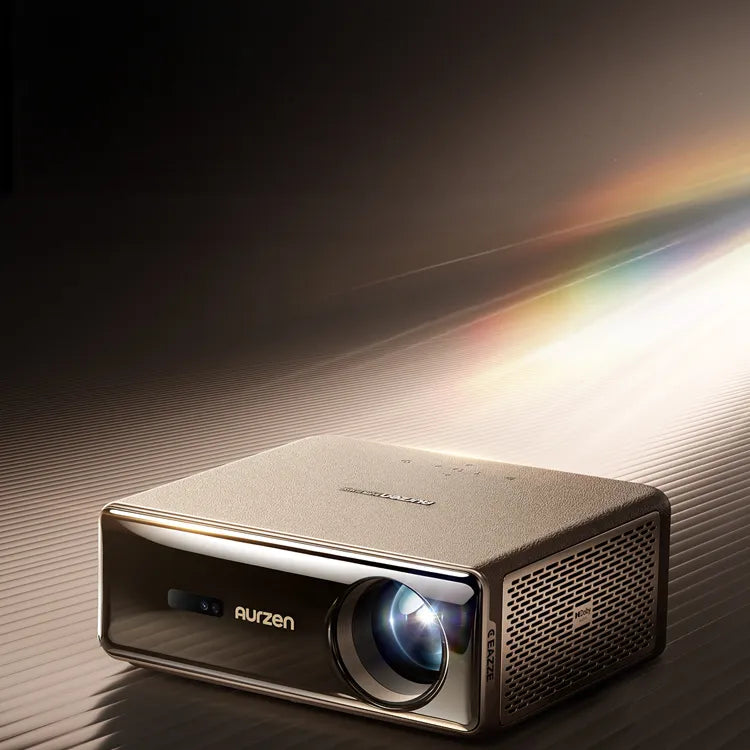


Aurzen EAZZE D1 MAX | Introduction
Tutorial Videos
How Auto Focus & Auto Keystone Correction Work | Aurzen EAZZE D1 MAX Projector FAQ
How to Pair the Bluetooth Remote | Aurzen EAZZE D1 MAX Projector FAQ
How to Use the Projector as a Bluetooth Speaker | Aurzen EAZZE D1 MAX Projector FAQ
How to Adjust Brightness Settings | Aurzen EAZZE D1 MAX Projector FAQ
How to Remove Dust Spots on the Screen | Aurzen EAZZE D1 MAX Projector FAQ
Providing 10000+ APPs and 800+ Free TV Channels with Google TV
How to Download Apps | Aurzen EAZZE D1 MAX Projector FAQ
How to Use Manual Focus & Manual Keystone Correction | Aurzen EAZZE D1 MAX Projector FAQ
How to Use Google Cast | Aurzen EAZZE D1 MAX Projector FAQ
How to Use Google Assistant | Aurzen EAZZE D1 MAX Projector FAQ
How to Use Intelligent Obstacle Avoidance | Aurzen EAZZE D1 MAX Projector FAQ
How to Set Up a Google Kids Account | Aurzen EAZZE D1 MAX Projector FAQ
Ultra-Smooth Motion with MEMC — See the Difference
One-Click Access to Netflix, Prime Video, YouTube & Free TV
How to Cast an iPhone or Android Phone to the Projector | Aurzen EAZZE D1 MAX Projector FAQ
How to Connect to Dual-Band Wi-Fi (2.4GHz / 5GHz) | Aurzen EAZZE D1 MAX Projector FAQ
How to Change Projection Size Without Moving the Projector | Aurzen EAZZE D1 MAX Projector FAQ
High Definition at Its Best – Perfect for Movie Nights!
How to Cast an iPhone or Android Phone with Google Cast | Aurzen EAZZE D1 MAX Projector FAQ
FAQ
Is this the truly Google TV 14.0 system? How many apps and free TV channels does it support?
Yes, it's truly the Google TV system. It provides 10,000+ apps, such as Netflix, YouTube, Prime Video, Hulu, Disney+, Spotify, and 800+ Free TV Channels, such as Pluto TV, Yahoo Finance, BBC Earth, Moviesphere, etc.
How to adjust the brightness?
EAZZE D1 MAX delivers authentic, SGS-certified ANSI brightness, rigorously tested to the ANSI/ISO 21118 standard—ensuring scientifically verified and reliable visuals. You can switch between three optimized modes: High (1000 ANSI) for bright indoor rooms or outdoor use at dusk, Standard (800 ANSI) for daytime indoor viewing with curtains drawn, and Eco (680 ANSI) for cozy bedroom cinema or eye-friendly night viewing.
To adjust the brightness, go to Settings > Projector > Energy & Performance > Brightness Mode.
How does MEMC make the viewing experience smoother?
EAZZE D1 MAX brings premium MEMC technology—once reserved for high-end models—right into your home. By intelligently inserting extra frames between fast-moving scenes, it delivers ultra-smooth, blur-free motion for a more lifelike viewing experience. Perfect for sports, gaming, and action movies, it lets you enjoy every detail with crystal-clear precision
MEMC is enabled by default. You can check or adjust it at: Settings > Display > Expert Settings > MEMC.
How to pair the Bluetooth remote control when initially turning on the projector?
- Turn on the projector and wait for the pairing prompt on the screen.
- Bring the remote control within 0.33ft/10 cm of the projector, then simultaneously press and hold the “home” and “back” buttons.
- Wait for the pairing to complete.
- Or you can go to Bluetooth>pair accessory.
- Bring the remote control within 0.33ft/10 cm of the projector, then simultaneously press and hold the “home” and “back” buttons to the pairing mode.
- Click and wait for the pairing to complete.
How to set up a Google kids account?
- Click on the user's avatar and select “Add an account”.
- Click "Add a kid" and follow the steps.
- Enter information and create your kid's account.
- Click and select your kids account.
- Set a PIN for your kids account.
- Select apps for your kids account.
- Then the kids account is created.
How to use Google Assistant?
- Wake it up by using the device - specific activation button.
- Ask it questions or give commands such as "Open YouTube" or "What's the time".
How to use Google Cast?
- Firstly, connect your phone and projector to the same Wifi.
- Open a Cast-supported app and tap the Cast icon to stream.
How to cast an iPhone or Android phone to the projector?
Ensure both devices are connected to the same Wi-Fi.
For iPhone:
- Download and open the “AirScreen” app on the projector.
- On your iPhone, select “Screen Mirroring” and choose the projector.
For Android:
- Download and open the “Google Home” app.
- In the app, go to "Devices" > "Local Devices," select “D1Max” (or your projector’s name), and tap “Cast my screen.”
Due to copyright restrictions, some content cannot be cast to the projector. However, the projector comes with pre-installed licensed streaming apps. Simply go to the homepage, select "Apps," search for the app, and log in to play your content.
How to download and install the APP?
- Click Apps>Search for Apps and games.
- Search for the APP you want and click to install it.
How do auto focus & keystone correction work?
Auto Focus and Auto Keystone Correction are automatically activated when the projector is powered on or detects shaking or rapid movement.
How to use the electric focus and electric keystone correction?
- For electric focus, press the “Focus” button on the remote.
- For electric keystone correction: Go to Settings>Projector>Keystone>Manual Keystone, and use the arrow keys to set.
How to use intelligent obstacle avoidance?
- Go to Settings > Projector > Keystone > Advanced and turn “Auto Avoid” on.
- Detects obstacles with sensors, adjusts the projection area.
How to use the projector as a Bluetooth speaker?
Go to Settings > Projector > Bluetooth Speaker Mode, then select Projector to enter Bluetooth speaker mode. Next, open your mobile device’s Bluetooth settings, search for EAZZE_D1 Maxunder available devices, and connect to complete the pairing.
What is the recommended optimal viewing size and distance?
We usually recommend a screen size of 80"–120" and a projection distance of 7.35 ft (2.24 m) to 11.38 ft (3.47 m). The optimal distance may vary depending on the content being projected, so please adjust as needed.
User Guide
| Title | Last Updated | Size | Language | Download |
|---|---|---|---|---|
| EAZZE D1 MAX Manual-English V1.03 | 2026/01/23 | 6.68 MB | English | |
| EAZZE D1 MAX Manual-Spanish V1.03 | 2026/01/23 | 7.18 MB | Español | |
| EAZZE D1 MAX Manual-German V1.03 | 2026/01/23 | 7.06 MB | Deutsch | |
| EAZZE D1 MAX Manual-French V1.03 | 2026/01/23 | 7.15 MB | Français | |
| EAZZE D1 MAX Manual-ltalian V1.03 | 2026/01/23 | 7.18 MB | Italiano | |
| EAZZE D1 MAX Manual-JP V1.03 | 2026/01/23 | 6.98 MB | 日本語 |