

Foldable phone, portable big screen
Apple’s foldable iPhone can open into a 7.6-inch display. Aurzen ZIP Pro can take compatible content farther, projecting a recommended 60–80-inch Full HD image in a dark room. This guide explains the connection choices, the settings that matter, and the limitations worth knowing before movie night or your next game.
The easiest expected way to use iPhone Duo with Aurzen ZIP Pro is AirPlay P2P, which lets compatible iPhones mirror without an external Wi-Fi network. For games where response time matters, a wired USB-C video connection would be preferable.
The Foldable Setup: What Each Device Does
iPhone Duo is the source, controller, and personal display. Its 5.4-inch outer screen handles quick interactions; opening the phone reveals a 7.6-inch inner display for video, games, and two-app Split View in iOS 27.
Aurzen ZIP Pro is the shared screen. The tri-fold body opens into an adjustable stand, while the native 1080p DLP system projects the picture. It is rated at 200 ANSI lumens and performs best with the lights down. This is a portable projector for flexible, light-controlled spaces rather than a replacement for a bright-room television.

That division of labor is useful. The phone stays close enough to browse, play, or pause. The projector gives the image enough scale for a partner, family, or friends to join in.
Search terms such as mini projector and pocket projector describe size, but size alone does not make a good iPhone projector. The useful questions are whether the projector accepts the phone’s actual video path, whether delay suits the game, whether brightness matches the room, and whether the stand can hold the picture where people want to see it. Those details matter just as much when comparing the best gaming projector for travel.
- Aurzen ZIP Pro and sufficient battery power
- A clean wall or portable projection screen
- A darker room for stronger contrast
- A compatible AirPlay or wired video route
- A video-capable cable if using wired output
- A Bluetooth controller for gaming, if preferred
AirPlay or USB-C: Which Connection Should You Use?
Choose the connection around the activity, not simply around what looks tidier. Wireless mirroring is convenient for sharing photos and many everyday tasks. A confirmed wired route is better for predictable playback and lower gaming latency. Protected streaming content may require a different supported source because some apps block mirroring.
| Method | Best for | Main benefit | Watch for |
|---|---|---|---|
| AirPlay P2P | Photos, web pages, presentations, and compatible video | No external Wi-Fi network or video cable required | Added latency and possible DRM restrictions |
| USB-C video | Gaming and stable local playback | Lower, more consistent delay than wireless | Requires source-side DP Alt Mode; iPhone Duo support is not yet confirmed |
| Supported external source | Streaming services that restrict phone mirroring | Uses a playback path authorized by the service | May require an accessory, separate power, or an additional device |
How to Mirror iPhone Duo to ZIP Pro With AirPlay P2P
ZIP Pro supports peer-to-peer AirPlay for compatible iPhones. That means the phone and projector can communicate directly instead of relying on the hotel, campsite, or home Wi-Fi network. The exact iOS 27 menu wording may change before iPhone Duo ships, but the normal setup path is straightforward.
- Place the projector. Unfold ZIP Pro on a stable surface and aim it at a plain wall or screen. Start near a 60–80-inch image in a darkened room.
- Turn on wireless projection. Open ZIP Pro’s casting interface and select the AirPlay or iOS mirroring option shown on the projector.
- Open Control Center on iPhone Duo. Choose Screen Mirroring, then select the ZIP Pro name displayed on screen.
- Enter the on-screen code if requested. This confirms the connection between the phone and projector.
- Test the content before settling in. Play a short clip, rotate the phone, and check audio. If an app shows a black screen, the cause may be DRM rather than a failed connection.
- Disconnect when finished. Return to Screen Mirroring in Control Center and stop mirroring to preserve battery and privacy.
Keep the phone close to the projector, close background downloads, and avoid placing either device beside equipment that creates heavy wireless interference. If the game or video still stutters, switch to local content or a verified wired connection rather than repeatedly changing picture settings.
How a Wired USB-C Connection Would Work
ZIP Pro has a dedicated USB-C video input for compatible DisplayPort Alt Mode sources. With a supported device, the usual process is to connect a full-featured USB-C video cable from the source to the projector, select the wired input, and let the image appear. A cable is especially valuable for games because it avoids the encoding, transmission, and decoding steps used by wireless mirroring.
Is ZIP Pro the Best Projector for Gaming and Movies?
ZIP Pro is a compelling portable gaming projector when small size, battery power, and flexible placement matter more than maximum brightness. Aurzen lists a 20–40 ms response time for its direct USB-C gaming setup. That range is suitable for many adventure, racing, platform, role-playing, sports, and party games, though competitive players may prefer a dedicated low-latency display.
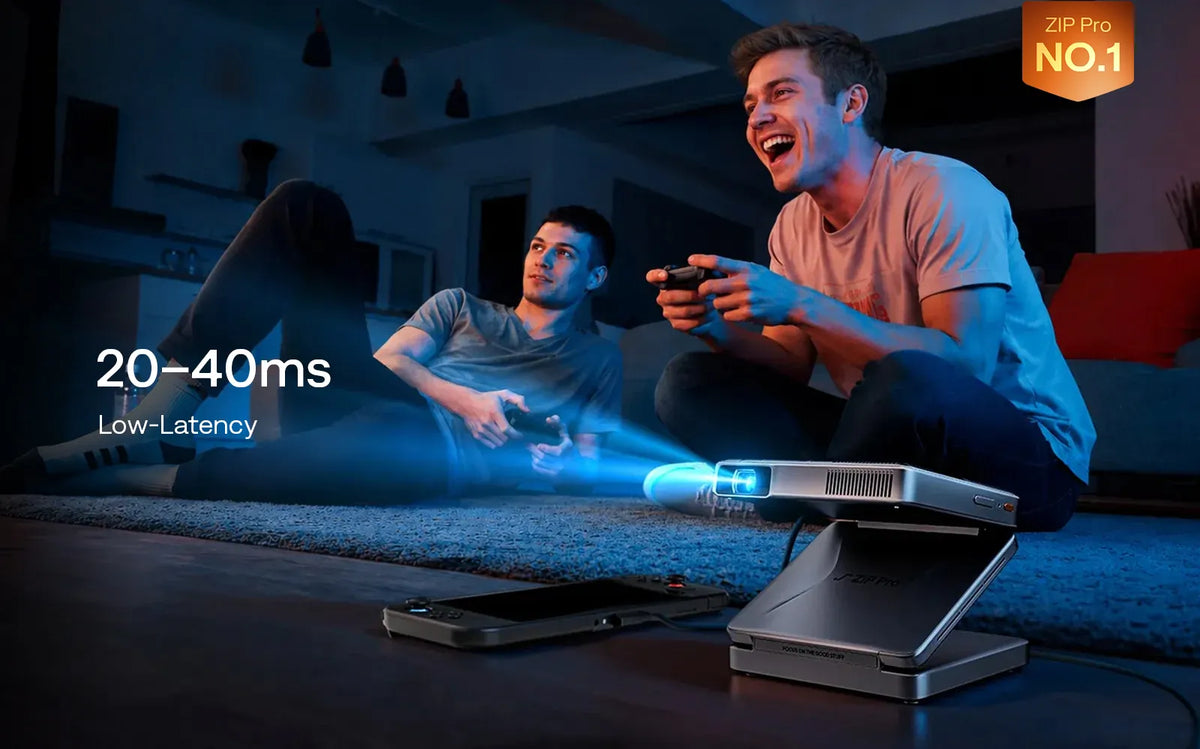
Wireless mirroring changes the calculation. AirPlay is convenient, but the extra transmission delay can be noticeable in shooters, rhythm games, and other timing-sensitive titles. Casual, turn-based, puzzle, and narrative games are more forgiving. If iPhone Duo supports the required wired video mode after release, that would be the connection to choose for serious play.
For movies, image quality depends more on light control and source quality. Native 1080p gives subtitles, menus, and fine detail a cleaner appearance than a 720p image. At 200 ANSI lumens, the picture will look richer at night or with curtains closed. A 60–80-inch image is a sensible target; making the image much larger also makes it dimmer.
| Activity | Connection | Room and image | Practical note |
|---|---|---|---|
| Movie night | AirPlay for permitted content; supported wired/source route for DRM services | Dark room, roughly 60–80 inches | Test the streaming app before guests arrive |
| Casual gaming | AirPlay may be acceptable; wired is better if supported | Low light, image sized for clear interface text | Pair the controller with the phone, not the projector |
| Fast-action gaming | Verified direct wired video | Dark room, avoid extreme keystone correction | Wireless delay can affect aiming and timing |
| Photo sharing | AirPlay P2P | Moderate-to-low light | Keep personal notifications hidden while mirroring |
| Travel presentation | AirPlay or verified wired video | Dim lights near the screen; use a smaller image if needed | Download files locally in case internet access fails |
A Better iPhone Duo Gaming Setup
1. Pair the controller first
Connect a compatible Bluetooth controller to iPhone Duo before starting screen mirroring. The phone runs the game, so it should remain the controller’s host.
2. Keep the image square
Place ZIP Pro as directly in front of the wall as the room allows. Heavy digital keystone correction can reduce usable detail around game text and interface elements.
3. Judge delay honestly
Move through a menu or play a familiar level. If input feels late, wireless projection—not the controller—may be the cause. Use a verified wired route when available.
iPhone Duo’s inner screen can still be useful while gaming on the projector. It provides a larger surface for setup, controller pairing, chat, or finding the next title. Once play begins, avoid leaving a bright duplicate image on the phone longer than necessary if the app offers a second-screen or controller view.
What About Nintendo Switch, Steam Deck, PlayStation, and Xbox?
ZIP Pro is not limited to phones. Compatible handhelds that output DisplayPort video over USB-C can connect directly with a full-featured USB-C cable. Aurzen specifically promotes a direct USB-C setup for compatible Nintendo Switch use. Other handhelds, including Steam Deck-class devices, should be checked model by model because USB-C video and power behavior can vary.
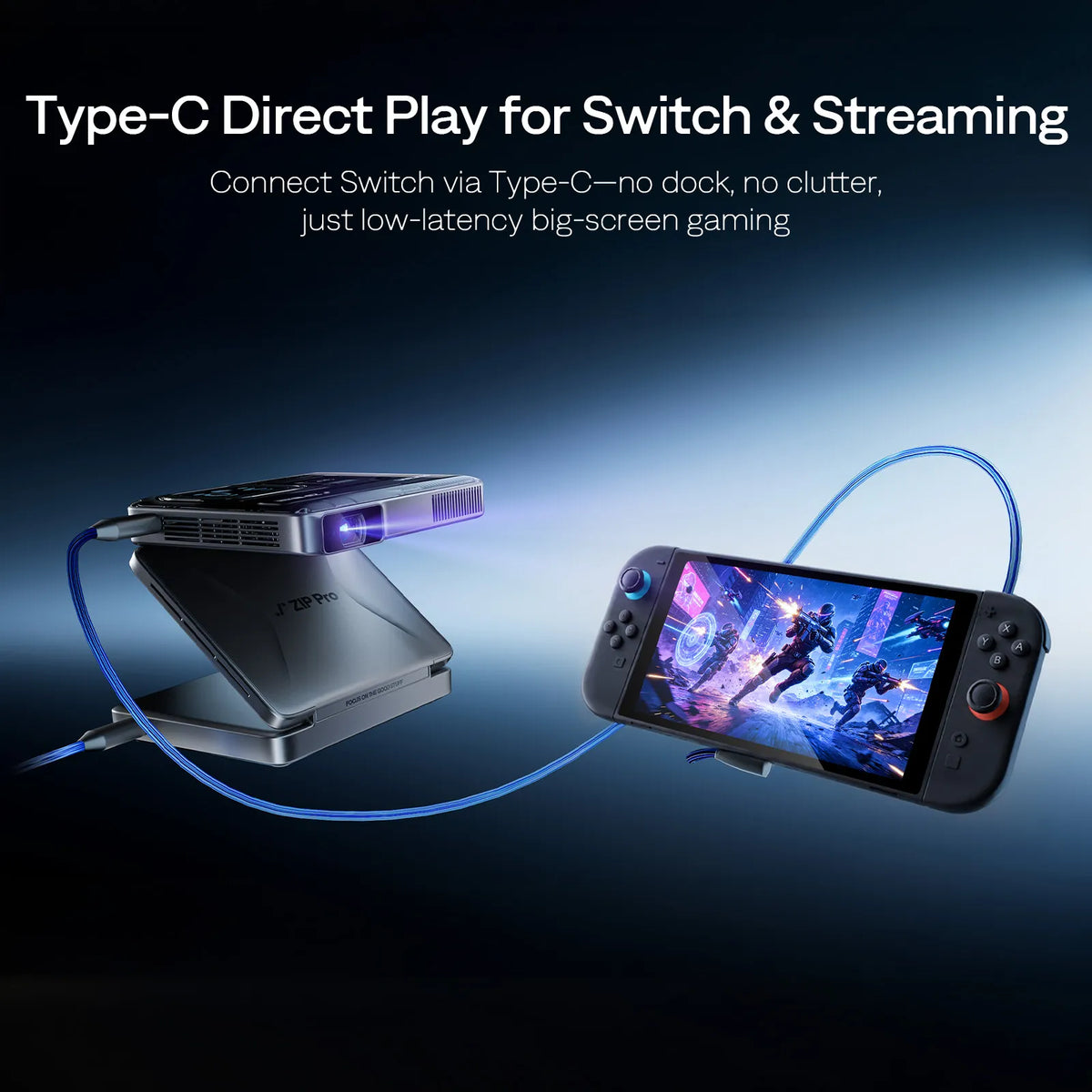
PlayStation and Xbox consoles output HDMI rather than USB-C DisplayPort. Connecting one to ZIP Pro requires an active HDMI-to-USB-C video converter designed to take HDMI from the console and output the signal format accepted by a USB-C display. A passive cable usually works in only one direction—or not at all—and many active converters need separate USB power. Confirm direction, resolution, refresh rate, and power requirements before buying.
If a console is your main use, test the entire adapter chain before a trip. The simplest gaming setup is still the one with the fewest converters.
How to Get a Better Movie Picture
- Control the light first. Closing curtains will improve contrast more than endlessly adjusting picture controls.
- Start at 60–80 inches. That is Aurzen’s recommended range for a dark environment and a sensible balance of size and brightness.
- Project straight on when possible. Autofocus and four-point keystone make setup easier, but physical alignment preserves the cleanest image.
- Use the highest-quality source available. Native 1080p projection cannot restore detail lost in a heavily compressed or low-resolution stream.
- Check aspect ratio. If the image looks stretched or cropped, return the phone, app, and projector to automatic aspect settings before making manual changes.
- Plan for DRM. Downloaded content can still carry playback restrictions. Confirm the app’s supported external-display method before leaving home.
Power and Audio for a Two-Hour Session
ZIP Pro’s 38Wh battery is rated for up to 2.5 hours in Eco mode under controlled conditions. Actual runtime changes with picture mode, speaker volume, wireless activity, temperature, and connected equipment. For a long film or game night, begin with a full charge or connect a 65W+ USB-C PD power source. Aurzen says a compatible 65W+ supply can charge the projector while it is in use.

The built-in dual 2W speakers are convenient in a quiet room. ZIP Pro can also send audio to compatible Bluetooth equipment, including two pairs of headphones for private shared viewing. Bluetooth audio may introduce its own small delay, so wired or built-in sound can feel more synchronized during games.
Troubleshooting Common iPhone Projector Problems
| Problem | Likely cause | What to try |
|---|---|---|
| Projector does not appear in Screen Mirroring | Wireless casting mode is not active or the devices have not discovered each other | Reopen ZIP Pro’s AirPlay interface, toggle Wi-Fi and Bluetooth on the phone, then move the devices closer |
| Menus appear, but the movie is black | The streaming service blocks mirrored playback through DRM | Use a playback method supported by the service, such as a compatible wired or external source; do not attempt to bypass DRM |
| USB-C cable charges but shows no image | The source, port, or cable does not support video output | Confirm DP Alt Mode on the source and use a full-featured USB-C video cable; verify iPhone Duo support after release |
| Game controls feel delayed | Wireless mirroring or Bluetooth audio adds latency | Use a verified wired video path, try built-in audio, and close background network activity |
| Picture looks washed out | Too much ambient light or an image that is too large | Darken the room, move the projector closer for a smaller image, and use an appropriate screen surface |
| Text is soft near the edges | Projector alignment or strong keystone correction | Center ZIP Pro physically, rerun autofocus, then use only the correction needed to square the image |
iPhone Duo Projector FAQ
Can iPhone Duo connect wirelessly to Aurzen ZIP Pro?
ZIP Pro supports AirPlay P2P for compatible iPhones, allowing screen mirroring without an external Wi-Fi network. Final real-world behavior with iPhone Duo should be confirmed after its October 23 release.
Can I play Netflix from iPhone Duo on ZIP Pro?
ZIP Pro does not have Netflix installed, and Netflix or other DRM-protected apps may block wireless mirroring. Use a playback route supported by the service and compatible hardware; a verified wired or external source may be required.
Is ZIP Pro good for gaming?
ZIP Pro is well suited to portable and casual big-screen gaming in dark environments. Aurzen lists a 20–40 ms response time for a direct USB-C gaming setup. Wireless mirroring can add more latency, so a compatible wired connection is preferable for fast-action games.
What is the best screen size for gaming and movies on ZIP Pro?
Aurzen recommends 60–80 inches in a dark environment. This range balances image size, brightness, and readable Full HD detail. A larger projected image will usually look dimmer.
Can I use iPhone Duo and ZIP Pro without Wi-Fi?
Yes, for compatible content. ZIP Pro’s AirPlay P2P connection does not require an external Wi-Fi network. Internet access is still needed for online streaming or cloud gaming unless the content is already stored locally.
Can ZIP Pro connect to PlayStation or Xbox?
PlayStation and Xbox use HDMI output, while ZIP Pro accepts USB-C DisplayPort video. They require a compatible active HDMI-to-USB-C video converter in the correct direction, often with separate power. A passive USB-C-to-HDMI cable is not interchangeable.


